
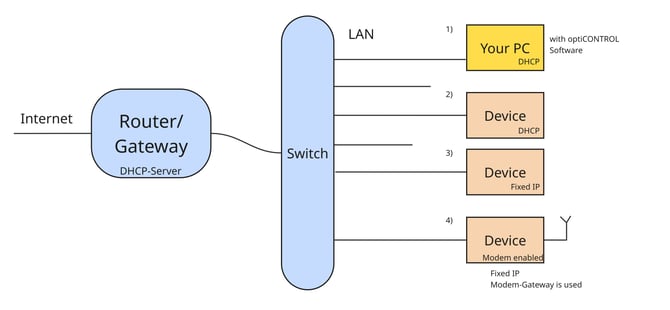
Scenario 1: Device on a local network with a router and DHCP
In many installations, the device is integrated into an existing LAN in which a router/gateway also functions as a DHCP server (e.g. typical business or home routers).
The PC running optiCONTROL and the optiMEAS device are both connected to this router via a switch.
Enable DHCP on the device
- DHCP can be enabled on the device so that it automatically obtains its IP address, subnet mask and gateway address from the router (DHCP server).
- Once this data has been configured, a route to the internet is established, and the device can be accessed from any PC on the same local network using optiCONTROL.
Fixed IP addresses on the same subnet
- Alternatively, a static IP address can be configured on the device.
- It is important that the IP address, subnet mask and gateway belong to the same subnet as the router and PC (e.g. router 192.168.1.1, PC 192.168.1.10, device 192.168.1.20 with subnet 255.255.255.0).
- The gateway address must point to the router for the internet connection to work.
Scenario 2: Device on the local network with a static IP address
If the device remains on the LAN but is not using DHCP, a static IP address within the router’s address range is assigned.
The PC can communicate with the device directly via TCP/IP using optiCONTROL, provided both are on the same subnet.
Typical procedure
- Determine the router’s IP range (e.g. 192.168.0.x).
- Select a free address for the device, e.g. 192.168.0.40, subnet mask 255.255.255.0, gateway 192.168.0.1.
- Ensure that the PC’s network interface is also on the same subnet (e.g. 192.168.0.20).
Scenarios 3 and 4: Device on the LAN with the LTE modem enabled
optiMEAS devices have an integrated LTE modem and can therefore establish an internet connection independently.
The modem is configured via optiCONTROL (e.g. APN).
Routing‑behaviour
- As soon as the modem is activated and successfully connected, the device defaults to using the LTE modem as the route to the internet.
- The gateway connection via the local router is then deactivated for internet traffic; however, the local Ethernet connection for configuration remains possible, provided the IP addresses are on the same subnet.
Local access despite the modem
- The PC can still access the device via Ethernet, e.g. for diagnostics or updates.
- To do this, the device’s IP address on the LAN must be on the same subnet as the PC (see Scenario 1/2).
Finding devices even though they are on a different subnet
optiCONTROL can detect devices even if their IP address is on a different subnet to that of the PC.
To do this, optiCONTROL sends a UDP broadcast packet; all optiMEAS devices on the network respond with basic information.
Reconfiguration via UDP
- These devices are displayed in the optiCONTROL device list, even though they would not (yet) be accessible via TCP/IP.
- Using UDP communication, the device’s IP address, subnet mask and gateway can be adjusted to ‘bring it into’ the PC’s address range.
- The optiCONTROL software provides a dedicated dialogue box for this purpose
Thereafter, normal configuration via TCP/IP is possible again.
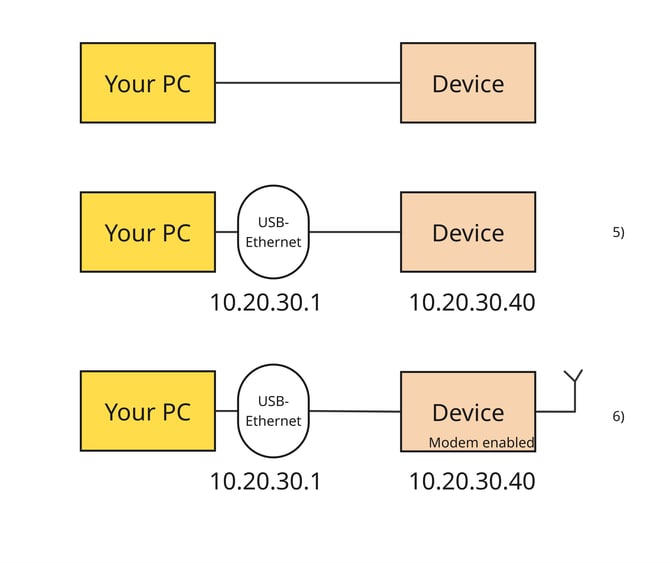
Scenario 5: Direct Ethernet connection without a router
In many commissioning situations, the device is connected directly to a PC, without a router or switch.
The device is factory-set with a static IP address, e.g. 10.20.30.40 (subnet 255.255.255.0).
Setting the PC address
- A USB-to-Ethernet adapter is often used, the IP address of which is manually set to the same subnet, e.g. 10.20.30.1 with subnet mask 255.255.255.0.
- A gateway address is not required in this scenario, as no connection to the internet via this interface is needed.
- Once this setting has been applied, optiCONTROL can establish a direct connection to the device and carry out the configuration.
Direct connection with modem enabled
- If the LTE modem is also configured in the device, the device establishes its internet connection via the modem.
- The point-to-point Ethernet connection to the PC remains available for configuration and diagnostics.
Szenario 6: Gerät als Access‑Point und Gateway
In an advanced configuration, the optiMEAS device can itself act as a network node.
It uses its LTE modem to access the internet and makes this connection available to other users.
Access‑Point‑Function
- The device can act as an IP gateway for connected devices that are linked via Ethernet or Wi-Fi (using a Wi-Fi dongle connected to the device).
- These devices are assigned IP addresses from a defined range and use the optiMEAS device as a gateway to the internet.
- At the same time, access via optiCONTROL remains possible for configuring the device and the connected devices.
8. Quick checklist for practical use
- Check whether a router with DHCP is available; if so, enable DHCP on the device or select a suitable static IP address.
- Ensure that the PC and the device are on the same subnet if direct or local configuration via optiCONTROL is to be carried out.
- If the LTE modem is enabled, note that internet traffic routes via the modem, but local configuration is still possible via Ethernet.
- When commissioning the device for the first time without a router, use the device’s factory IP address (e.g. 10.20.30.40) and configure the PC interface accordingly.
- If the address range is incorrect, use optiCONTROL to locate the device via a UDP broadcast and adjust its IP configuration.